

Hello lovelies, welcome back! Today I want to share a simple guide to finding any font from any image.
Every day more and more fonts are added and used in any type of design. Whether it is a social media template, a logo or even a brochure, new and different fonts are used in the most expressive and unique way.
Typography nowadays has a huge role in balancing the overall look of your website or design. Finding and using the right font can literally make the difference between a successful design and a non-appealing one. Not to mention that, like color, it can affect your mood.
I do recognize most of the best free script fonts (braggy me 🤭) since I love script fonts. And if you are, like me, constantly browsing and pining on Pinterest, you for sure, sometimes stumble to an image with a great font that makes your eyes sparkle and you want to have it.
The first question in my mind is: What font is it?
Followed by multiple questions and a brain freeze *insert Microsoft Windows XP shutdown sound*.
And if you are a designer, making your clients happy is a priority, even if they come with just an image of a new never-discovered font style.
So, searching every popular font site with Google’s ‘I’m Feeling Lucky’ in mind is a big no-no.
As a result, you need an online font finder, that helps you quickly find what you are looking for, just by submitting an image.
Lucky for us, there is a free online service that has a catalogue of 550K+ fonts (commercial or free) called WhatFontIs.
The What Font Is review it is a sponsored post. A sponsored post means I earn a compensation for writing an honest review about their services. My thanks to WhatFontIs for sponsoring this blog post. It helps me create more awesome content for you. I only recommend products that I love, and use myself. Thank you for your support.
How To Easily And Quickly Find Any Font From Any Image using What Font Is

As a bucket list lover, browsing on Pinterest for templates, I found out the Kelsey In London templates.
By searching the keyword ‘bucket list’ on Pinterest you will find that the majority of templates are made by the lovely Kelsey, @kelseyinlondon on Instagram.
I immediately fell in love with the font used for the ‘United Kingdom’ words and wanted to know its name.
I tried to find the font on a popular font finder but it didn’t work. On another online service, the results came back with only constellations and hieroglyphs. So, I gave up thinking that the font is maybe a custom font made by Kelsey.
Couple days ago I was asked to do a review for the What Font Is service. With everything that happened in mind, I was really anxious and curious to see if this service will find the font.
Before answering the email, I quickly tested the service with the same picture. I was delighted or chuffed (as the British would say) to find out the name of the font in a matter of seconds, literally. And that motivated me to accept the offer and let you know about this awesome service.
Without further ado, let’s see how to easily and quickly find any font from any image with What Font Is.
Here are the steps:
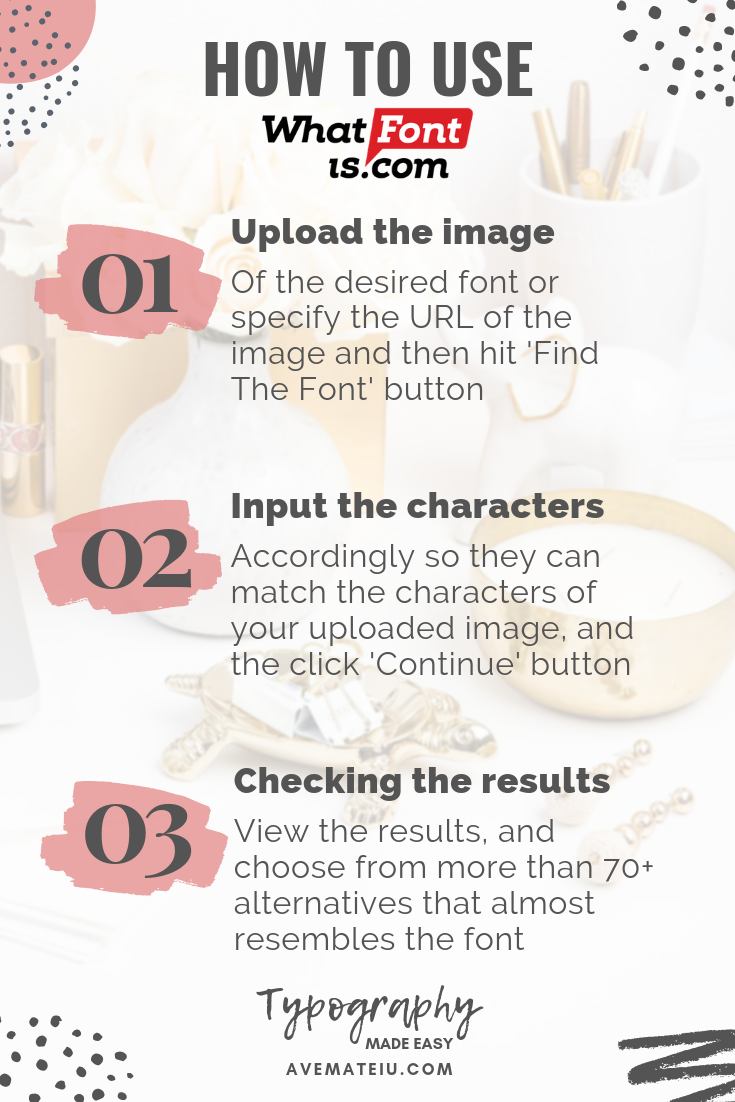
Step 1. Upload the image/screenshot of the desired font or specify the URL of the image and then hit ‘Find The Font’ button
Quick tip 1: If you can’t download or copy the image URL:
- on Mac press Command-Shift-4 at the same time to take a screenshot (here you can find more details);
- on Windows, you can use the snipping tool, or by pressing the windows key + shift + s at the same time ( here you can find more ways to take a screenshot on PC/Laptop).
Quick tip 2: Here you can see some good and bad examples of submitted images, and here you can check the FAQ page.

If the image has many fonts, you can crop only the desired portion, just like I did, and then press the ‘Crop Image’ button:

You can edit the picture too if you want. Then hit the ‘Use Image’ button:

Step 2. Input the characters accordingly so they can match the characters of your uploaded image, and the click ‘Continue’ button
Quick tip: If you want to display only free fonts, select ‘Only free or free alternatives’ from the ‘Options’ button. I suggest displaying all fonts for more results.

Step 3. Check the results
The results came back really fast. The font’s name used by Kelsey is: ‘Wild Spirit‘ by Sam Parrett. Moreover, another 70+ alternatives to choose that almost resembles the font, which is absolutely amazing.

With its huge font gallery and a very high processing speed, it is a fun tool to try out.
At the bottom of the results, if the results didn’t turn out to be like the one that you were hoping, you can post on the forum. You will need an account for this step, the support is quick.

Final thoughts
WhatFontIs is the easy, fast and flexible way to find almost any free or commercial font from any image. It helps thousands of designers from all over the world identify the fonts they need.
Did I mention that the site provides you a Google Chrome browser extension that you can install and use anytime? Yes, they do.
I am very pleased with the fact that I found the font that I was looking for.
If you love the service, like I do, feel free to join them. As a member you have access to some advanced functions of the system:
- automatic character recognition 80 possible fonts per recognition;
- access to the search history favorite fonts;
- if the system does not find the font you are looking for, you can post your request to the forum (awesome quick support);
- or check out the latest help requests from other members.
If you have more questions or you need technical support feel free to contact them via the contact form from here.
Whether it is for personal use or commercial use, I really hope you will find the desired font’s name with What Font Is service.
Did you find your desired font’s name? Let me know in the comments!
Feel free to like and share this post using the buttons below.
Dream big & Make it happen
xxAve
How To Easily And Quickly Find Any Font From Any Image at-a-glance:
…totally cool…thanks for this tip.
My pleasure🙏🏻 Have a lovely day! xxAve